Edit common video files like AVI, WMV, MPG, MOV, MP4, FLV, 3GP, MKV, AVCHD, MTS, MOD, TOD, MXF, XAVC, Tivo, PVR files on Windows and Mac
"How can I get a lightroom slideshow to play on my DVD player, or on my TV? No matter what resolution I pick for the slideshow, the CD or DVD will not play on my DVD player, or TV. The slideshows I make in PSE8 WILL play on my TV. Doesn't make any sense to me. Any resolutions?" ---- PhotoShop
Adobe Photoshop lightroom slideshow is a good program to create slideshow. This program can be used on both Windows and Mac. Many people like to create photo slideshow with lightroom and burn to DVD for playback on DVD player or TV.
However, it may not be so easy to do it. To burn Adobe Photoshop lightroom slideshow to DVD, you need a professional DVD Creator. Here, you can turn to Wondershare DVD Creator which can fast and best burn lightroom photo slideshow to DVD. Besides, it also allows you to edit DVD, such as, customize DVD menu background music and picture, buttoms etc.
Tips: To burn Photoshop lightroom slideshow to DVD on Mac, you cna turn to DVD Creator for Mac
First, import your Lightroom slideshow and save them in H.264 or MPEG-4 files on your computer. Then, import the slideshow video files from your computer to DVD Creator. Be mind that the green bar at the bottom indicates the total size of your added slideshow files.
You have two ways to do it, one is to click "Import" button on the left side of the program to load the files you need. The other is to directly drag the target files to its left interface.
After you imported Lightroom slideshow files. if you need to change the play order, just click the "↑“ or "↓" option at the bottom. Or you can click "Add title" button to add more titles if you need to organize videos in a better way.
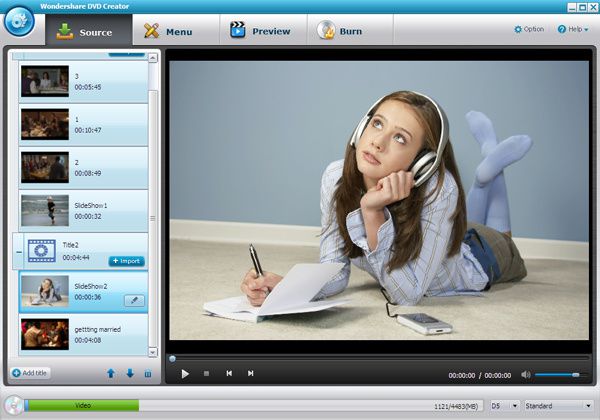
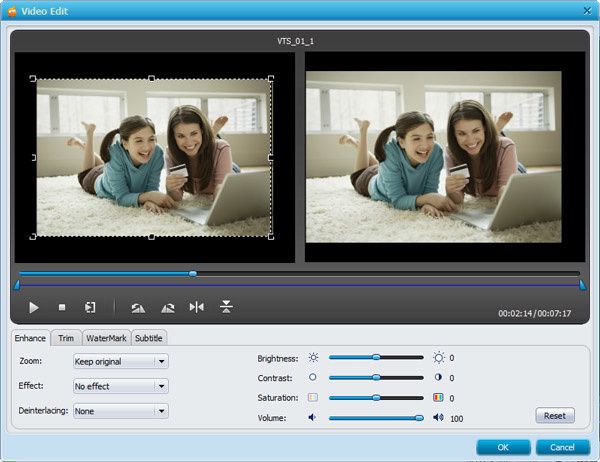
Click the pen icon beside the video item you ned to edit. And then in you can edit your videos in multiple ways, like trim, crop, rotate video, and add watermark to videos in the pop up window. Besides, you can also edit videos in other ways, such as adjust video brightness, contrast, saturation, and volume etc.
Click "Menu" tab on the top of the interface, then drag the slider down to select your desired DVD menu template, and then, you can do other customization, like customize thumbnail, text, background or add background music etc.
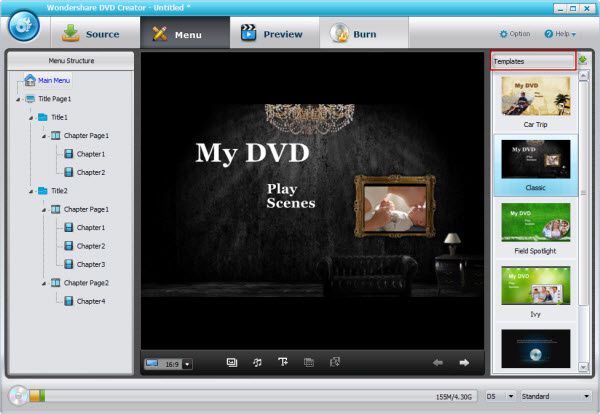
After that, it’s time for you to choose and decide on those final touches to personalize your DVD…what background and music would you like? Do you want to insert some text on the Menu’s screen? Or you’ll like to customize your Chapter’s thumbnail?
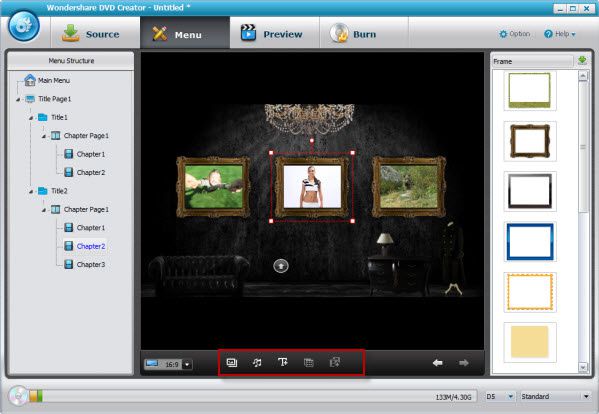
Customize Thumbnails: Click on the thumbnail to highlight and then ‘right-click’ to access its options. Alternatively, click on the thumbnail and then select the personalization options listed on the bottom of the screen. You can either use the frame of the video as the thumbnail’s image or select your own through checking the ‘use other image’ box.

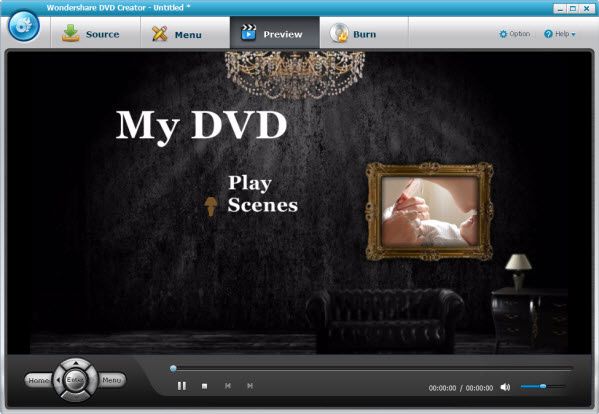
You can now view your DVD creation through clicking on the "Preview" tab. If you’re not happy with it, you can always go back to make some changes.
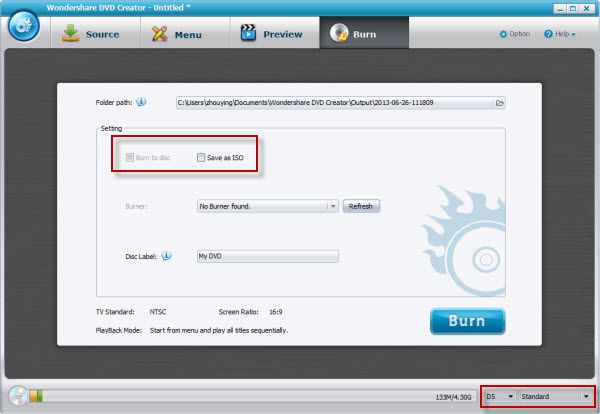
Apart from copying it to a physical DVD, you can also save it as a softcopy in an ISO format file.


/image%2F0232046%2F20160514%2Fob_41644e_ob-b5ed13-wonderfox-dvd-video-converte.png)
/image%2F0232046%2F20160108%2Fob_85faad_drfoneforios-sc05.jpg)
/image%2F0232046%2F20160106%2Fob_65a006_drfone-android-sc01.jpg)
/image%2F0232046%2F20140927%2Fob_cd00b6_ob-1514ce-ipod-home-mac.jpg)