Edit common video files like AVI, WMV, MPG, MOV, MP4, FLV, 3GP, MKV, AVCHD, MTS, MOD, TOD, MXF, XAVC, Tivo, PVR files on Windows and Mac
“How to recover deleted videos and photos from Sony Xperia M? I accidentally deleted some videos and photos from my Sony Xperia M. Does anyone know how I can recover videos or photos I deleted on it?” —— Answers Yahoo
Sony Xperia is a family of Sony smartphones and tablets. The line of phones has been manufactured since 2008, while the first tablet released under the brand was launched in 2012.
If you accidently deleted some files on Sony Xperia and are looking forward to getting them back from you Sony Xperia, then, you are just at the right place. In this article, we will show you how to recovcer deleted files from Sony Xperia with Wondershare Dr. Fone for Android.
Wondershare Dr. Fone for Android is a powerful Android Data Recovery that can help you recover deleted files such as photos, videos, contacts, messages, audios, documents and Whatsapp chat history from Sony Xperia phones and tablest as well as other Android devices such as Samsung, Motorola, LG, HTC, ZTE, Huawei, Xiaomi etc
Step by step to recover deleted files from Sony Xperia
Step 1: Connnect your Sony Xperia to the computer
Download, install and run Dr.Fone for Android to see the following main interface. Then, connect your Sony Xperia to the computer with a USB cable.

Step 2: Enable USB debugging before scanning your Sony Xperia
If you didn’t enable USB debugging on your device, you’ll see the window below. Check what Android OS is your Xperia device and then follow the instructions below to set it now
Note: If you have enabled USB debugging on your device before, you can skip this step.
1) For Android 2.3 or earlier: Enter “Settings” < Click “Applications” < Click“Development”< Check “USB debugging”
2) For Android 3.0 to 4.1: Enter “Settings” < Click “Developer options” < Check“USB debugging”
3) For Android 4.2 or newer: Enter “Settings” < Click “About Phone” < Tap“Build number”for several times until getting a note “You are under developer mode” < Back to “Settings” < Click “Developer options” < Check “USB debugging”
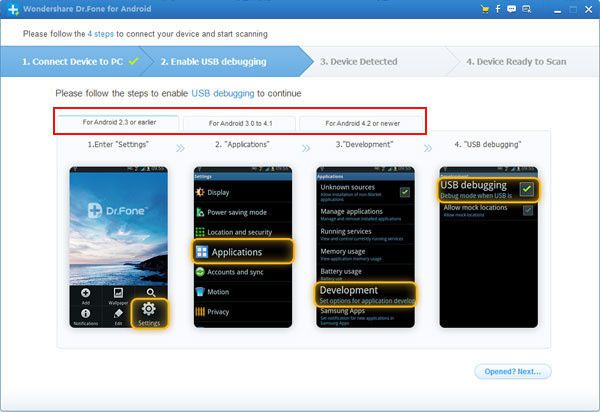
Note: If you still get this window and the USB debugging has been enabled, please try to disable it and reset it again.
Step 3. Scan your Sony Xperia for deleted files
After your Sony Xperia is connected and detected by the program, click “Start” to start analyzing your device.

Note: Before doing this, make sure that your phone battery is more than 20% charged, so that you can get a smooth scan
If your device is not rooted before, the program will directly scan it after the analysis.
Note: For the device that Wondershare Dr.Fone for Android doesn’t support currently, it may lead you to set USB Mass Storage on your device to scan photos, videos, music and documents, or to root your device by yourself (if there is no USB Mass Storage option). All rooted Android devices are supported well. You can choose to do it or not by yourself.
If you rooted your device before, you need to allow the program Superuser authorization on the screen of your device. Just click “Allow” when the message pops out on your device’s home screen. Then back to your computer, and click “Start” on the program’s screen to scan your device.

Note: For some devices, they may ask you to click “Allow” more than one time on your device’s homescreen. It’s normal. Just do it if it askes. It doesn’t matter. Just click it until it doesn’t appear again or the program has begun its real scan.
Do not disconnect your device during the scan, or the scan will fail.

Step 4: Preview and recover deleted files from Sony Xperia
After scanning, a list of recoverable files that have been found from your Sony Xperia device will be shown. In addition, there will be a preview window of files where you can preview the contacts, SMS, photos and videos from your Sony Xperia device. Mark those you want and click “Recover“.

Article Source; How to recover deleted files from Sony Xperia


/image%2F0232046%2F20160514%2Fob_41644e_ob-b5ed13-wonderfox-dvd-video-converte.png)
/image%2F0232046%2F20160108%2Fob_85faad_drfoneforios-sc05.jpg)
/image%2F0232046%2F20160106%2Fob_65a006_drfone-android-sc01.jpg)
/image%2F0232046%2F20140927%2Fob_cd00b6_ob-1514ce-ipod-home-mac.jpg)