Edit common video files like AVI, WMV, MPG, MOV, MP4, FLV, 3GP, MKV, AVCHD, MTS, MOD, TOD, MXF, XAVC, Tivo, PVR files on Windows and Mac
Probably, most people will get an error saying ""None of the files dropped on sony vegas pro could be opened" when they are trying to open .MP4 files in Sony Vegas. I also encountered the similar problem, this is really irritating. However, after a long time research, I finally find two methods that can solve the problem.
Method 1: Install QuickTime or K-Light Codec pack
In first method you have to install QuickTime from Apple website (Link can be found at the bottom of post in downloads section). After installation of Quick Time in your computer, you have to restart your computer. Now when you will open mp4 files in Sony Vegas these files will open without giving any sort of error.
Tips: Quicktime version 7.6.4 is broken. After installing, Vegas users frequently report loss of MOV/MP4 audio import, or crashes when opening or rendering various files.
What is being done: Sony has fixed the issue in Vegas Professional 9.0c
Apple has also released versions 7.6.5 and 7.6.6, which reportedly do not fix the problem for all Vegas installations.
The most reliable fix for .mp4, .m4v, .mov, etc. audio not opening or crashing Vegas is to roll back to Quicktime 7.6.0 or 7.6.2. You will also have to uninstall iTunes 9 and reinstall iTunes 8 to get it working again. Once again, this is Apple's issue and has been abundantly discussed on the internet.
Many people have also reported that they got this error fixed by downloading and installing k-lite codec in their computer. If installing QuickTime didn't helped, give a try to k-lite codec. However, I also found people blaming the codec saying K-Lite is that it blindly installs all kinds of components (not just codecs), many of which are not compatible with each other. And it does not uninstall cleanly.
In theory, a codec pack sounds like a good idea. It would give you all of the decoders that you need to play videos.You may only need one or two filters or codecs, but the codec pack will come with 10, 20, 30 or more parts! Some of these might conflict with software or drivers you already have. Even worse, they might conflict with something you get later leading you to blame the new software instead of the codec pack installed months ago.
Method 2: Convert MP4 to Sony Vegas compatible files
If neither install QuickTime nor K-Light Codec park can solve the problem, you can turn to a simple way, just convert MP4 to any other format supported by Sony Vegas. This is an easy, convenient and effective way So to convert MP4 and other videos to Sony Vegas supported video formats, you can use a Video Converter to convert your MP4 videos
As far as I know, there is one Video Converter which can perfectly help you convert MP4 files to Sony Vegas readable files, besides, it also enables you to convert other videos like MOV, FLV, MKV, 3GP, AVCHD, MTS, MOD, MXF etc to Sony Vegas accepted files.
Step by step to convert MP4 to Sony Vegas
Step 1: Import MP4 files
Click “Add Video” to load your as many MP4 files as you can into MP4 to Sony Vegas Converter
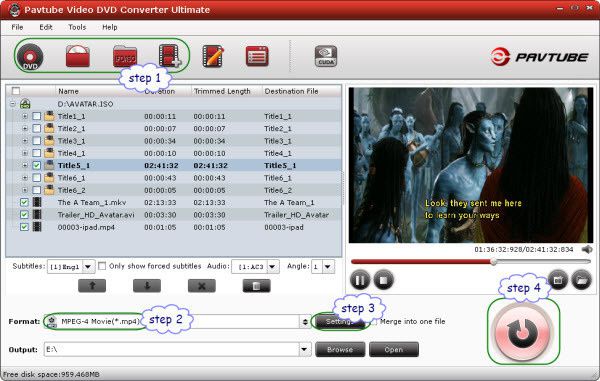
Step 2:Select output format and directory
Select “Format” pull down list to select AVI, WMV or MPG as output format. And then, click the small triangle to choose a path to save your converted files.
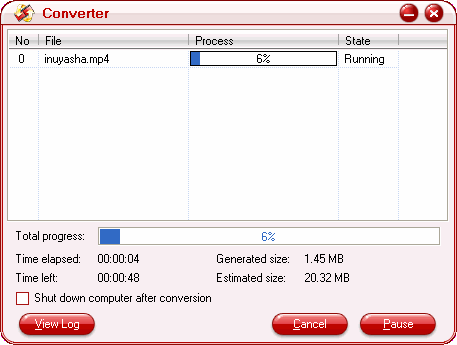
Step 3: Convert MP4 videos
Click “Convert” to decode MP4 files to AVI, WMV,MPG for editing in Sony Vegas
Aftere converting MKV to AVI, WMV or MPG, you can free import MP4 to Sony Vegas for free editing.


/image%2F0232046%2F20160514%2Fob_41644e_ob-b5ed13-wonderfox-dvd-video-converte.png)
/image%2F0232046%2F20160108%2Fob_85faad_drfoneforios-sc05.jpg)
/image%2F0232046%2F20160106%2Fob_65a006_drfone-android-sc01.jpg)
/image%2F0232046%2F20140927%2Fob_cd00b6_ob-1514ce-ipod-home-mac.jpg)