Edit common video files like AVI, WMV, MPG, MOV, MP4, FLV, 3GP, MKV, AVCHD, MTS, MOD, TOD, MXF, XAVC, Tivo, PVR files on Windows and Mac
"I create powerpoint presentations for my family annually via Microsoft PowerPoint 2010. The problem is that in order to have a different song playing for each slide or a group of slides, I have to create a play list via iTunes. I am looking for a device or way to create the powerpoint along with the music and put it all on one DVD together without having separate devices. Like, I have a total of 10 songs for the entire presentations that fades in and out in transition with slides. Any suggestions??"
Here, you can turn to Moyea PPT to DVD Burner which is an all-inclusive conversion tool that helps burn PowerPoint to DVD and Blu-ray Disc playable with DVD or Blu-ray Disc Player on TV and turn PPT to video convenient for portables, while keeping complete of PowerPoint originals like animations, sounds, slide transitions and video clips.
And below are the detailed guides to help you convert PowerPoint slideshow to DVD
Step 1: Import PowerPoint slideshows
Click "Add" button to import your PowerPoint files that you want to convert to DVD/Blu-ray. You can add up to 12 PPT files per conversion.

Step 2: Choose a DVD/Blu-ray output option for your PowerPoint presentation
In the menu bar, click the 'Options' tab. The Options interface appears.

Check "Create Standard DVD" to create DVD from PowerPoint slideshows.
Step 3: Choose a right Blu-ray/ DVD menu or create your own
Toggle to the Menu tab. The Blu-ray/DVD Menu interface appears. Note that this feature is only available for 'Create Standard DVD' and 'Create Blu-ray Disc' options.

On the Blu-ray/DVD Remote Control Simulator,
If you want a different menu template for your Blu-ray/DVD slideshow, then under Select Menu Templates, click the dropdown list to select a menu you like best.
Make your personal Blu-ray/DVD menu
To discover fun in DIY a Blu-ray/DVD menu, just click the Menu Creator button. You can make your own main menu and title menu with rich features in the Menu Creator.

Click each specific tab in the frame to make a change. Moyea PPT to DVD Burner Pro lets you customize a Blu-ray/DVD menu with abundant background fill, frame styles, icon styles and frame colors.

After customization, click Apply to all to apply the current settings to all the rest PPT file for conversion.
4. Add background music & your narration
The Music feature gives you an alternative to sound inserting and narration recording in PowerPoint.

The operation for background music and recording narration goes the same in both the 'Auto' and 'Manual' modes.
5. Personalize your Blu-ray/DVD slideshow with a special logo/watermark
If you are afraid of unwanted modification to your or Blu-ray/DVD slideshow, you can take advantage of the Logo feature in the PPT to DVD/Blu-ray burner. It's a piece of cake to make it.
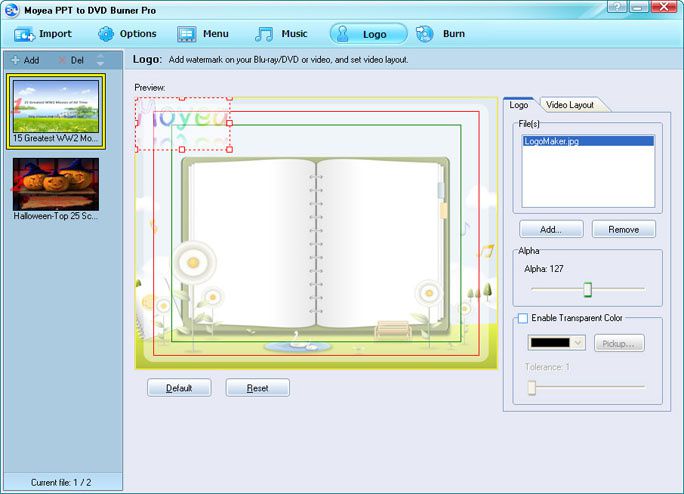
Forward to the Logo interface,
Besides adding in an individual logo, you can also use the Video Layout tab to customize the video layout of your Blu-ray/DVD slideshow.
6. Burn PPT to DVD/Blu-ray
Everything is ready, it's time to convert and burn your PowerPoint presentation to DVD or Blu-ray Disc. Click Burn to enter the Burn interface.

# Note: To burn your PowerPoint file directly to a DVD or Blu-ray Disc, you should have a writable DVD or Blu-ray Disc and a third-party Blu-ray/DVD burner on your PC.
You can also choose to create a Blu-ray/DVD image file, in case no DVD or Blu-ray Disc or DVD/Blu-ray burner is available. Later, you can burn the DVD/Blu-ray image file to disc with a third-party burner.
Then, click "Start" to enjoy the super conversion of PPT to Blu-ray/DVD. After conversion, you can hook the DVD or Blu-ray Disc to a DVD/Blu-ray player, sit back toward a big TV, and watch the PowerPoint-made DVD or Blu-ray with your family and friends.


/image%2F0232046%2F20160514%2Fob_41644e_ob-b5ed13-wonderfox-dvd-video-converte.png)
/image%2F0232046%2F20160108%2Fob_85faad_drfoneforios-sc05.jpg)
/image%2F0232046%2F20160106%2Fob_65a006_drfone-android-sc01.jpg)
/image%2F0232046%2F20140927%2Fob_cd00b6_ob-1514ce-ipod-home-mac.jpg)